Print Cropping Guide
Published on
So you’ve found the perfect frame for that beautiful photo, but many people are surprised that when they receive their print, part of the image has been cropped out. Why does this happen? Cropping changes the printed area of your photo, which can result in losing important parts of the image. Understanding print cropping is essential for achieving professional results every time. This comprehensive guide explains why print cropping happens and how to master it for flawless prints.
Why Does Print Cropping Occur?
Print cropping happens due to aspect ratio differences between your image and the chosen print size. Most modern digital cameras capture images with a 2:3 aspect ratio, which naturally fits standard print sizes like 4x6, 8x12, and 12x18 inches. However, popular frame sizes often have different aspect ratios, requiring print cropping to fit properly.
For example, an 8x10 frame has a 4:5 aspect ratio, meaning your original 2:3 image will need print cropping on either side to fit. Understanding this relationship is crucial for predicting how your final print will look. Matching your image to the correct print ratio is essential for avoiding unwanted cropping and ensuring important elements are not lost.
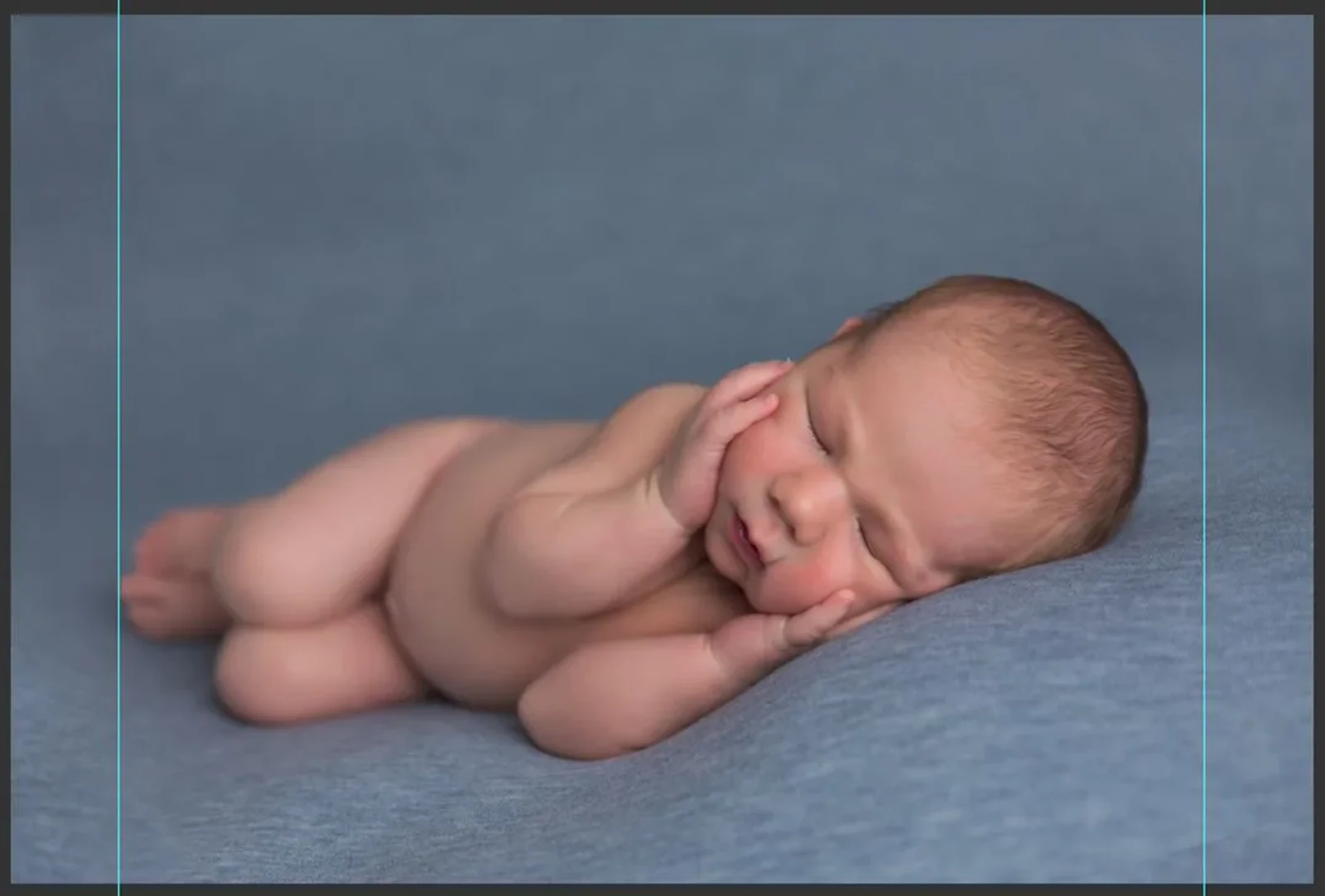
The blue lines in this image above indicate where the image would be cropped for a 8x10” print. These lines represent the trim line, and the area outside may be covered by the bleed area to prevent borders or white edges. Cropping can also affect the resolution of your final print, so it's important to ensure your image has enough detail for the chosen print size.
Understanding Print Cropping with Different Sizes
Common Print Size Aspect Ratios and Print Cropping Requirements
Navigating different print sizes means understanding how your different ratio of your images matches up with the dimensions of the final print. Common print sizes like 4x6, 5x7, and 8x10 each have their own aspect ratios, which may not always align with your camera’s native ratio.
Some print sizes, such as square prints, require special attention to cropping to ensure important elements are not lost. When preparing your image for different print sizes, both the width and height must be considered to maintain the composition and avoid unwanted cropping.
Standard Print Sizes
- 4x6 prints: Match 2:3 camera ratio (minimal print cropping)
- 5x7 prints: Require moderate print cropping from 2:3 images
- 8x10 prints: Need significant print cropping due to 4:5 aspect ratio
- 11x14 prints: Similar print cropping requirements as 8x10
Professional Print Cropping Software Techniques
To create prints that look their best, use software like Adobe Photoshop to adjust your image’s size and ratio, or rely on crop marks to guide precise trimming.
- Use Professional Software: Adobe Photoshop offers precise print cropping controls with aspect ratio locks
- GIMP Alternative: Use the ‘Fixed’ aspect ratio option for accurate print cropping proportions
- Preview Before Printing: Always preview your print cropping to ensure important elements remain visible
- Crop Mark Guidelines: Utilize crop marks to guide precise print cropping decisions
- Add Crop Marks in Software: Add crop marks in your design software to ensure accurate trimming of your printed materials.
- Automatic Crop Marks in Adobe InDesign: Crop marks can be created automatically in professional software like Adobe InDesign, which is widely used for setting up page layouts and managing print-specific information.
Setting up proper bleed margins in your document is essential for preventing unwanted white edges after trimming.
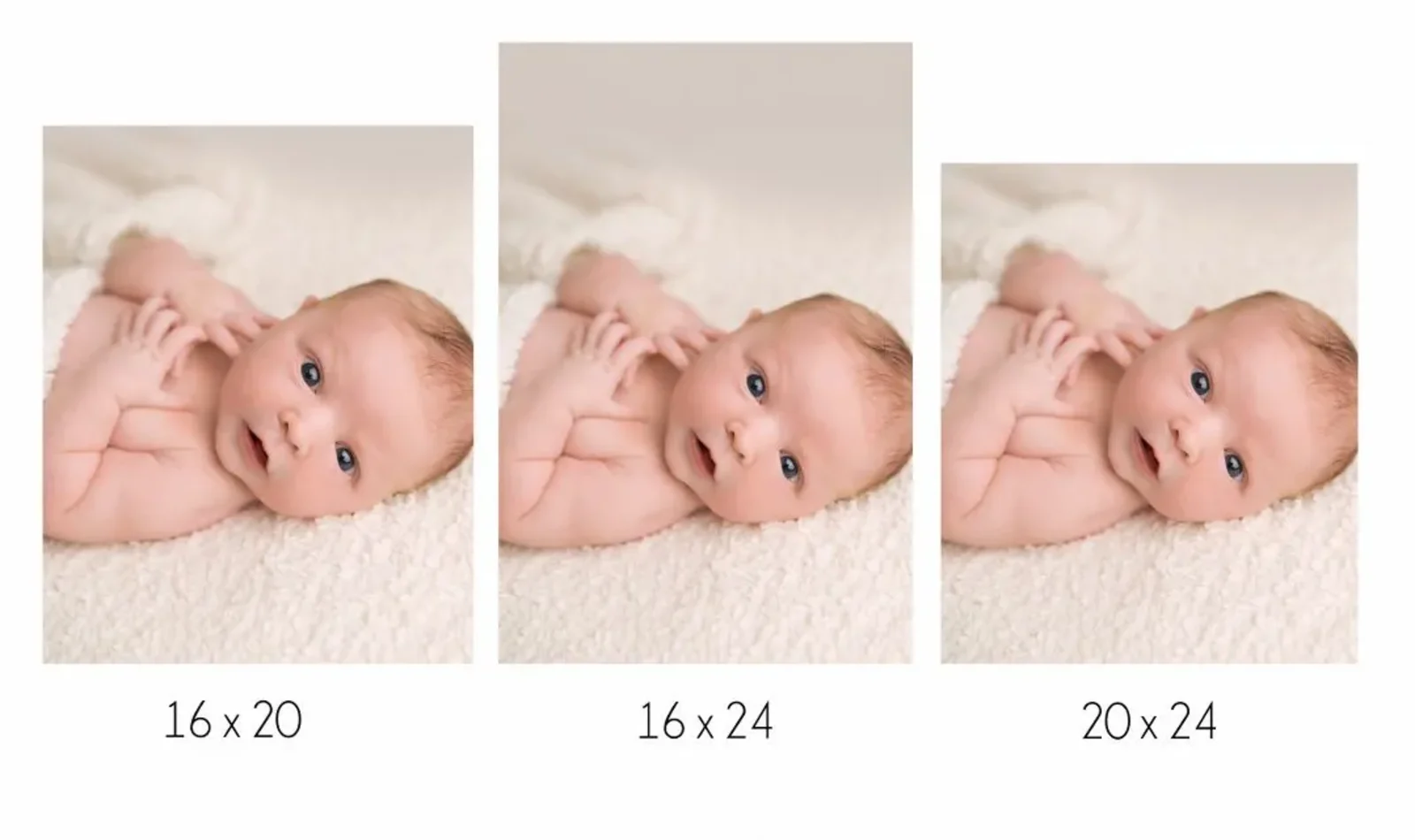
Below is an example of how the same image would look if it were cropped to fit the most popular frame sizes.
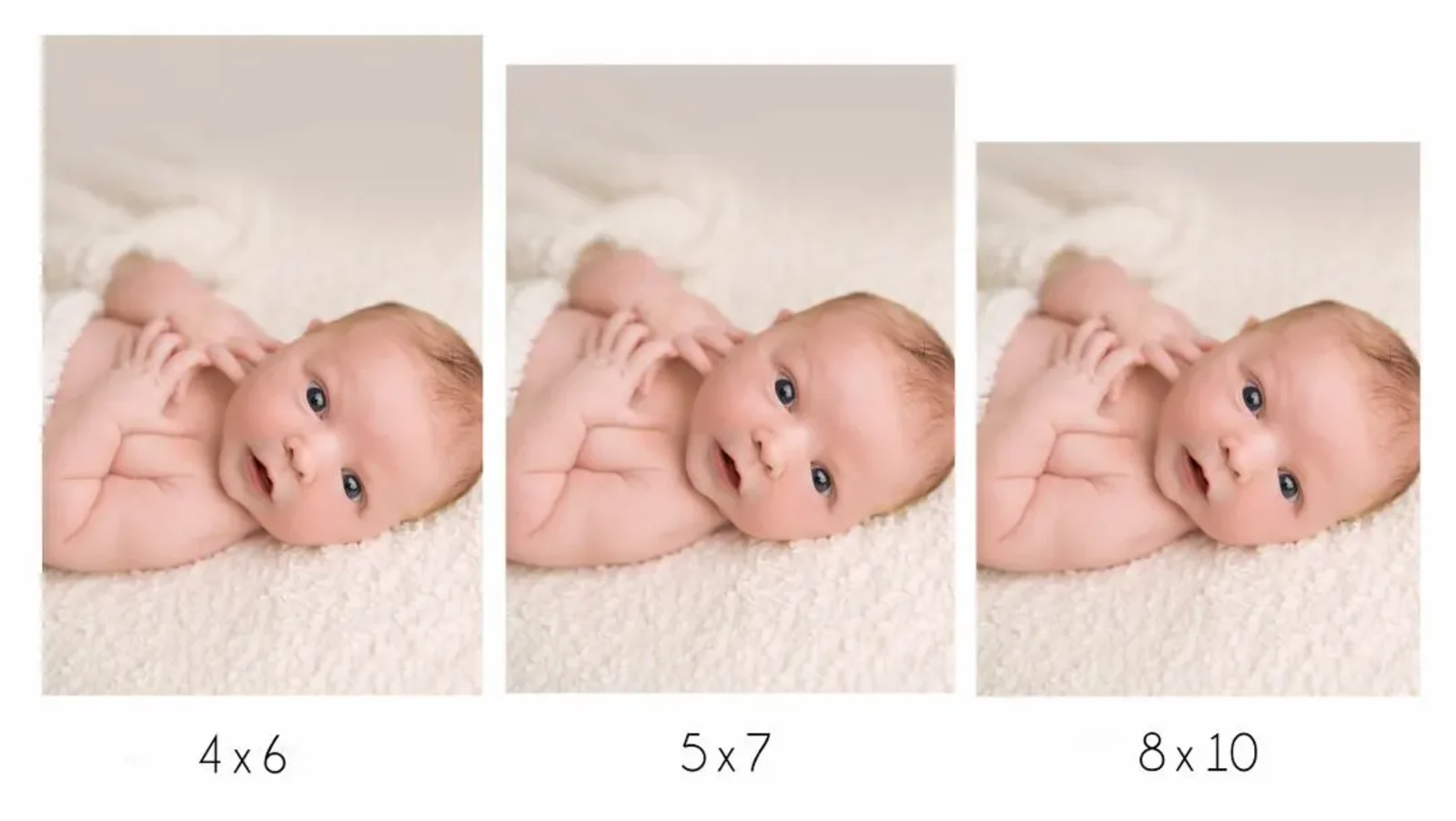
When you order your print from the photographer, they will select the best crop to suit the image. However, if you choose to print yourself, you may not get the option of where the image is cropped and therefore lose some important details, so bear this in mind and choose a quality print supplier so that you get the best image to put on display.
Working with Images for Print Cropping
When preparing your images for print, paying close attention to the aspect ratio and intended print size is essential for achieving a high-quality result. The printing process requires that your image fits the chosen print size, which often means some cropping will occur. To ensure your final print looks polished, it’s important to set up crop marks—thin lines that indicate exactly where the image will be trimmed. These marks guide the printer during the cutting process, helping to avoid unwanted white edges or uneven borders.
Before sending your image to print, check that the aspect ratio of your original image matches the print size you want. If there’s a mismatch, use a cropping tool in your preferred software to adjust the composition, making sure important details aren’t lost near the edges. Adding crop marks to your file is a crucial step in the printing process, as these lines show precisely where the image should be trimmed, resulting in a clean, professional finish.
By carefully considering the ratio, size, and placement of crop marks, you can ensure your images are trimmed accurately and maintain their intended quality. This attention to detail in the preparation stage is essential for producing prints that look great in any frame or gallery wall.
Understanding Crop Marks
Crop marks are small lines placed at the corners of your design file that guide printers on where to trim the paper for a precise, clean edge. Crop marks are part of a set of printer's marks used to guide the finishing process. In professional printing, multiple designs are often printed on a larger sheet and then cut down to size using crop marks. These marks are essential for ensuring your printed images are cut to the correct size, especially when working with custom print sizes or detailed design elements. The trim line is the exact spot where the paper will be cut, while the safety line (also known as the safety zone, where important content like text and logos should be kept to avoid being trimmed) sits just inside the trim line, creating a margin to protect important details from being accidentally trimmed off. The bleed area extends beyond the trim line, allowing background colors or images to reach the very edge of the finished print without leaving unwanted white borders. Including a bleed prevents unwanted white borders, especially when printing on white paper. By setting up crop marks, trim lines, and bleed areas correctly in your file, you help the printer achieve a flawless result, with your design elements perfectly aligned and no crucial details lost in the process.
Setting Up Bleed Marks
Bleed marks are crucial for achieving a seamless, professional finish in your printed images and designs. To set up bleed marks, you’ll need to extend your design elements—such as backgrounds or photos—slightly beyond the trim line, typically by about 0.125 inches (3mm). This extra area, known as the bleed, ensures that when the paper is trimmed, your images or backgrounds reach all the way to the edge, eliminating any risk of white lines or borders. This is especially important when printing on white paper, as any cutting inaccuracies can result in visible white edges. When creating print-ready files in software like Adobe Illustrator, you can easily set up both bleed marks and crop marks to guide the trimming process. For example, if you’re designing a brochure, extending your images into the bleed area and marking it clearly in your file ensures the final printed product looks polished and professional. You can also include notes in the file's slug area to communicate special instructions to the printer. Always remember to include bleed marks when exporting your files for print, so your design elements are covered right up to the document edge.
Conclusion: Mastering Print Cropping for Professional Results
Absolutely understanding print cropping transforms your printing experience from frustrating surprises to predictable, professional outcomes. By considering aspect ratios, using proper crop marks, setting up adequate bleed areas, and choosing appropriate print cropping techniques—where the margin size is often a matter of personal preference—you’ll consistently achieve the results you envision. All this attention to detail ensures your prints look their best.
Remember: successful print cropping starts with planning. Preview your print cropping decisions, understand your print size requirements, and work with quality suppliers who understand professional print cropping standards. With these techniques, your prints will look polished and ready for display in frames or when framed every time.
Happy printing!